-
Home
- PATROL
Configure Veritas Volume Manager KM
This section explains the settings required to configure Veritas Volume Manager KM via a PATROL console.
Performing Post-Installation Operations
It is recommended to perform post installation checks once the KM is installed and loaded on the PATROL Console to ensure it properly operates. Post-installation operations include:
- Configuring VxVM Nodes Monitoring
- Configuring the KM user account
- Verifying:
- Restarting the PATROL Agent and PATROL Console.
Configuring VxVM Nodes Monitoring
Veritas Volume Manager KM allows you to monitor several VxVM systems with one PATROL Agent. The configuration procedure is as follows:
-
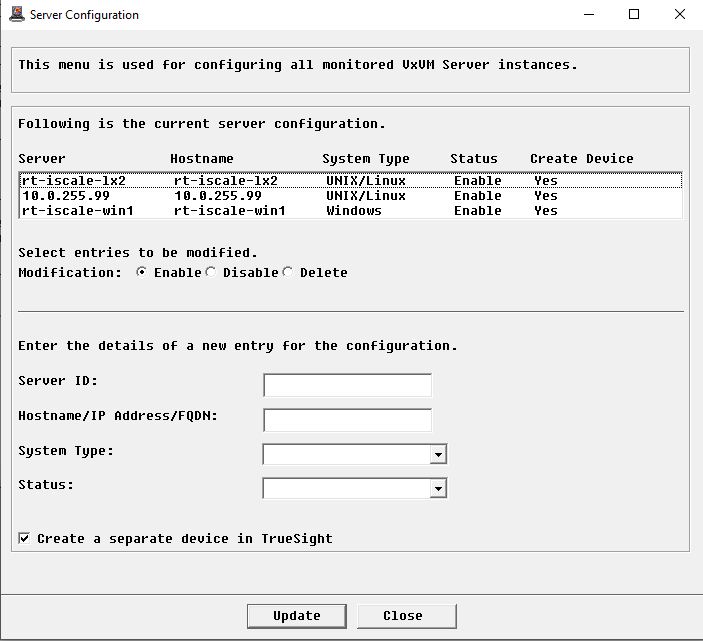
Right-click the Veritas Volume Manager main instance > Configuration > VxVM Nodes…
-
Specify the VxVM system details:
- Node ID: Enter an ID for the VxVM node. This information is only required if a unique ID cannot be generated using the hostname provided.
- (Required) Hostname/IP Address/FQDN: Enter the hostname, IP address, or FQDN of the node to be monitored.
- (Required) System Type: Specify whether the VxVM node is a UNIX/Linux or Windows system.
- (Required) Status: Select Enable to start the VxVM node monitoring; Disable to stop it.
-
Check the Create a separate device in TrueSight box if you want the VxVM nodes to appear as a separate device in TrueSight OM.
-
Click Update.

A VxVM Setup node instance (VxVM Setup: <node-id>) appears in the PATROL Console but the monitoring will not start until the appropriate credentials are entered using the Configuration > Login KM Command.
Configuring the KM User Account
A user account with administrative privileges must be configured in BMC PATROL or BMC TrueSight Operations Management to read and execute Veritas Volume Manager application programs and access file systems. Depending on the operating systems used, several options will be available. For more information, refer to Security Requirements.
To configure the KM user account:
-
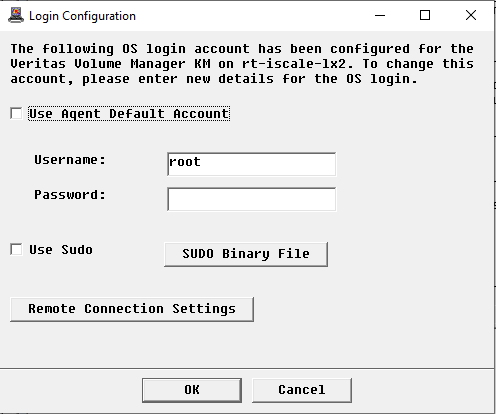
In the Console, right-click the host instance > KM Commands > Configuration > Login… The Login Configuration dialog box is displayed:
-
To use:
- the default PATROL Agent Account, check the Use Agent Default Account box and leave the Username and Password fields empty
- a different user account, enter the login details in the Username and Password fields
-
If a sudo user account is used:
- check the Use Sudo box
- click SUDO Binary File to verify the sudo binary file path
-
If you are monitoring a remote host, click Remote Connection Settings:
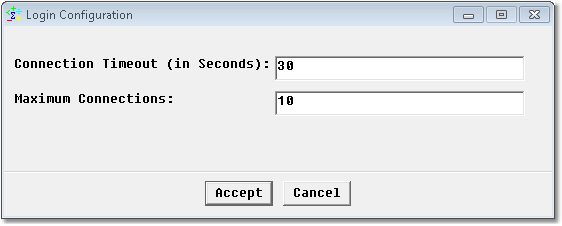
- Connection Timeout (in Seconds): Enter the number of seconds after which the connection to the remote node will timeout.
- Maximum Connections: Enter the maximum number of simultaneous connections allowed to the remote node.
- Click Accept.
-
Click OK.


If the credentials are not valid, the VVMLoginStatus parameter will appear in “suspicious state” after the next data collection.
Verifying the Application Discovery
To verify the application discovery:
-
Check that the VxVM Setup instance changes to display the server type. If not, check the message in the VxVM Setup instance and in the PATROL Console System Output Window (SOW) or in the log file <PATROL_HOME>/log/VVM_<port>.log. You can force a full discovery by right-clicking the VxVM Setup instance > KM Commands > Force Discovery.
-
Check that the application class instances are actually instantiated. The initial data collection may take some time depending on the complexity of your environment (up to one hour). If needed, force a data collection by right-clicking the server instance > KM Commands > Refresh Parameters.
If Veritas Volume Manager system is configured in a clustered environment, you will have to enable multi-node mode monitoring.
Configuring the Instance Limits
By default, Veritas Volume Manager KM monitors all the elements discovered, which may represent an important workload to the PATROL Agents and console. Because the monitoring of some elements may be irrelevant for various reasons, you can apply filters to indicate which elements will be monitored or not.
To modify the default configuration:
-
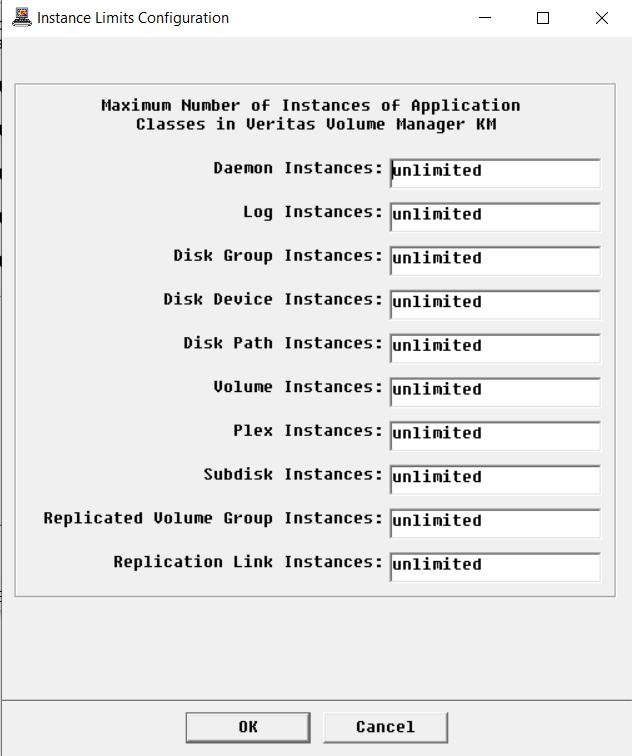
In the Console, right-click the server instance > KM Commands > Configuration > Instance Limits…
-
Enter the number of instances to be displayed in the console for each monitored element
- To disable the monitoring of a specific application class, enter 0 (zero) in the relevant field
- Click OK.

Verifying the Initial Setup
To check the initial setup of the KM:
-
Check for any error on the PATROL Console System Output Window (SOW) or in the
<PATROL_HOME>/log/VVM_<port>.log. -
Check whether the discovered files and directory paths are correct, using the menu Configuration > Paths… from the server instance.
-
Refer to the label of the server instance to check whether the discovered node type is correct. The node type can be modified, using the menu Configuration > Node Type… from the server instance.
-
Check the Infoboxes and Parameters of all the Veritas Volume Manager KM instances and verify that they are properly set.
-
Under each container instance, open all detail parameters (text parameters with names in the format
VVM<Object>Details), and check for error messages. -
Check the new value of the VVMLoginStatus and VVMNodeStatus parameters set after the completion of all data collection. If either is not in OK state, open the annotation point to determine the cause of the error. Veritas Volume Manager KM will check for the existence of the following daemons to determine the status of the node (parameter VVMNodeStatus). By default, these daemons are sought:
Daemon Description On UNIX/Linux: vxconfigd Veritas Volume Manager Configuration Daemon vxrelocd Veritas Volume Manager Relocation Daemon vxiod Veritas Volume Manager Kernel Volume I/O Daemon On Microsoft Windows: vxsvc Veritas Domain or Local Controller Daemon vxpal Veritas Provide Access Layer Daemon
These default daemons can however be changed through the menu Configuration > Node Status…. Refer to Configuring the Node Status for more details.
-
After the KM has been running for at least an hour:
- Right-click the server instance > KM commands > KM Status… from the Veritas Volume Manager instance. A report is displayed, detailing information on the managed system. Check through the report for any warning or alarm. If any error is found during any of the above steps (including any incorrect data in Infoboxes or any warning or alarm in the KM Status report), determine the cause(s) and take steps to resolve these errors. You may need to refer to the User Guide, or contact Technical Support, attaching the KM Status report.
- If needed, click Save As Task to open the report in a task window. You could later save it as a text file or print it.
-
The KM automatically discovers and monitors all components of the VxVM node. You can disable monitoring selected components by setting their instance limit to 0 (zero), using the menu Configuration > Instance Limits….
Restarting PATROL Agent and PATROL Console
Restarting the PATROL Agent and PATROL Console is optional but often a good practice to confirm that the Veritas Volume Manager KM operates correctly.
In addition, the PATROL Agent restart will force all KM discoveries and data collections to start immediately.
Configuring Advanced Settings
Configuring Alerts
Configuring Alerts Rules
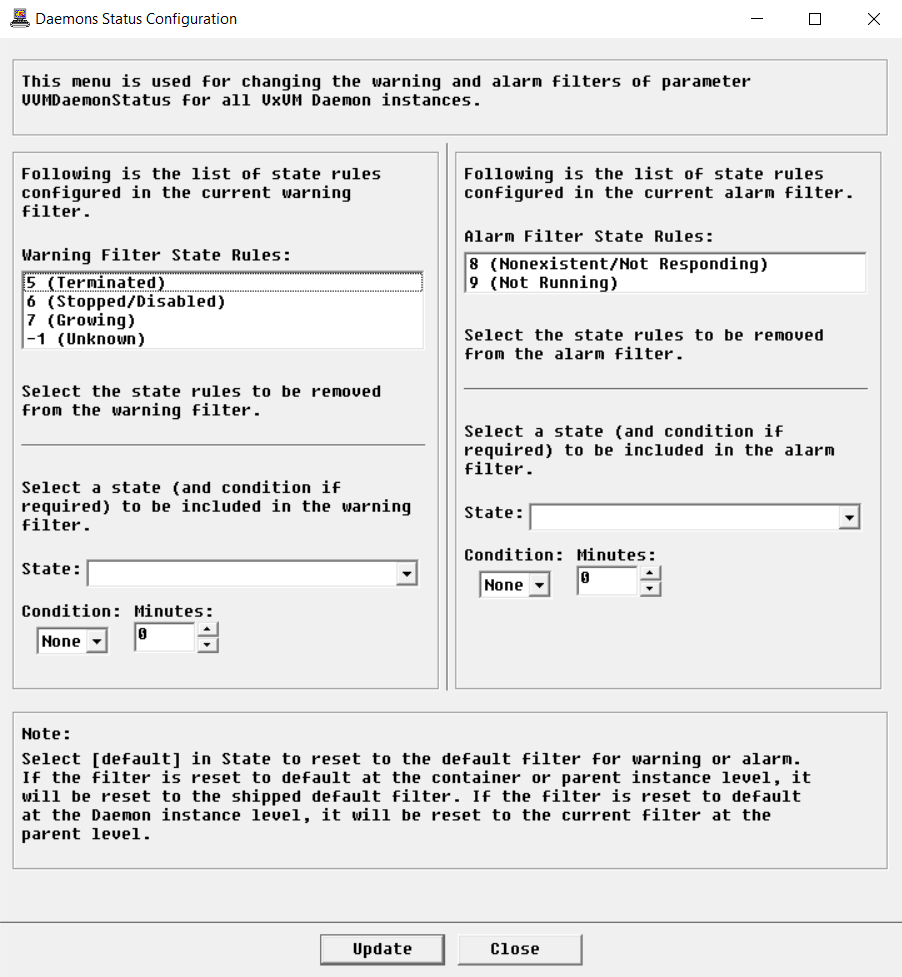
The status of an element is determined by the State parameter and by the status mapping rule. This mapping rule indicates which states will trigger a warning or an alarm on the Status parameter. It can be configured as follows:
-
In the Console, right-click one of the instance for which you want to configure the status and select > KM commands > Configuration > Instance Status…
-
In the Warning Filter State Rules list, select the states that will not trigger a warning
- If needed, apply a time condition to a specific state. For example, if you want to trigger a warning when the Growing state of the Daemon instance lasts more than 600 minutes:
- From the State list, select 7 (Growing)
- From the Condition list, select >
- In the Minutes field, enter 600
-
In the Alarm Filter State Rules list, select the states that will not trigger an alarm
- If needed, apply a time condition to a specific state. For example, if you want to trigger an alarm when the Not Running state of the Daemon instance lasts more than 30 minutes:
- From the State list, select 9 (Not Running)
- From the Condition list, select >
- In the Minutes field, enter 30
-
Click Update. The mapping rule will be applied to that specific instance.
To revert to the default status mapping rule for either filter, select [default] from the list of states and click Update.
-
Resume the procedure for all the instances for which you wish to apply monitoring filters.

Configuring Alert Acknowledgement
By default, alerts will automatically be acknowledged unless you modified the settings to allow manual acknowledgement.
Please note that manual acknowledgement may impact the performance of the application and of the PATROL Agent if the number of alerts waiting to be acknowledged constantly increases.
Configuring Logs Alert Acknowledgement
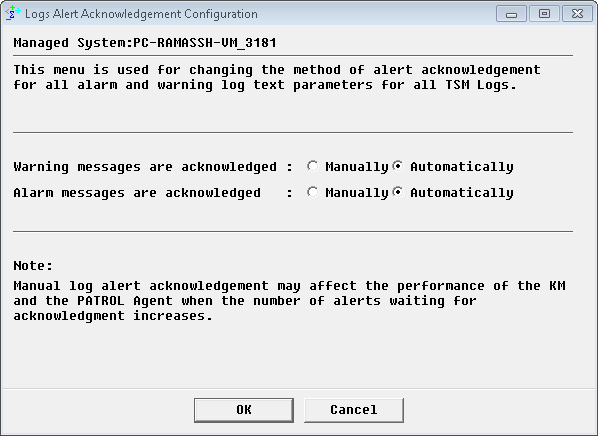
By default, log alerts are automatically acknowledged when new ones are detected. To change the default behavior:
-
In the Console, right-click the Log(s) instance > KM Commands > Configuration > Log(s) Alert Acknowledgement…
-
Indicate whether the warning and alarm messages will be manually or automatically acknowledged
- Click OK.

Configuring the Discovery Overrides
The solution automatically discovers the installation, binary, and library paths. This information can however be overridden.
To configure paths:
-
In the Console, right-click the server instance > KM commands > Configuration > Paths…
-
In the KM section, verify and possibly modify the Home, Temp, and Debug Directory Paths
-
In the VxVM section, verify and possibly modify the Installation and the Remote Temp Directory (remote nodes only) Paths
-
In the Binary Paths and Library Paths sections:
- From the list, select the paths to be removed
- In the Path field, enter the new path(s) to be included. If several paths are to be entered, separate them with a colon (:).
-
Click OK.
If you want to rediscover the paths, empty all fields, click OK, and restart the PATROL Agent.
Configuring Logs
By default, the following system log and Windows event logs are monitored. These log file paths are relative to the VxVM installation directory (for example /opt/VRTSvxvm on UNIX and C:\Program Files\Veritas), unless the path is fully pathed.
| Log File | Description |
|---|---|
| On Solaris: | |
| /var/adm/messages | System Log |
| On HP-UX: | |
| /var/adm/syslog/syslog.log | System Log |
| On AIX/Linux: | |
| /var/log/messages | System Log |
| On Microsoft Windows: | |
| Events - System/[vV]x.* | Windows System Event Log |
| Events - Application/[vV]x.* | Windows Application Event Log |
Configuring the Log Filter
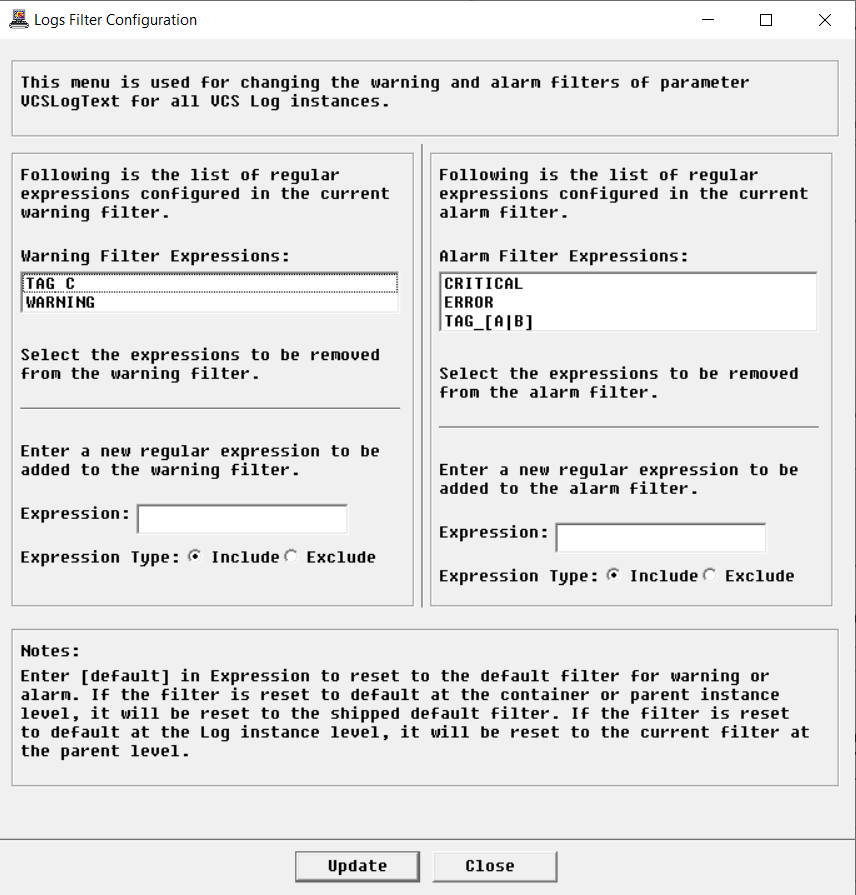
A log error filter can be configured to specify the regular expressions that will generate a warning or an alarm. Each time the KM finds these expressions in a log file (or in VVMLogText), the error message will be written to the VVMLogAlarmText or VVMLogWarningText parameter. By default, the log filter is configured for the system log file. If you enabled additional log files for monitoring, you will have to customize the log filter by adding appropriate expressions for those log files.
| Error Expression | Set to Parameter | Status |
|---|---|---|
| [vV]x.*PANIC | VVMLogAlarmText | Included |
| PANIC.*[vV]x | VVMLogAlarmText | Included |
| [vV]x.*CRITICAL | VVMLogAlarmText | Included |
| CRITICAL.*[vV]x | VVMLogAlarmText | Included |
| [vV]x.*ERROR | VVMLogAlarmText | Included |
| ERROR.*[vV]x | VVMLogAlarmText | Included |
| [vV]x.*FATAL | VVMLogAlarmText | Included |
| FATAL.*[vV]x] | VVMLogAlarmText | Included |
| [vV]x.*WARNING | VVMLogWarningText | Included |
| WARNING.*[vV]x | VVMLogWarningText | Included |
| [vV]x.*NOTICE | VVMLogWarningText | Included |
| NOTICE.*[vV]x] | VVMLogWarningText | Included |
For more information about the possible error messages, refer to the Veritas Volume Manager System Administrator’s Guide and the Veritas Volume Manager Troubleshooting Guide.
To configure the log error filter:
-
In the Console, right-click the Logs instance > KM Commands > Configuration > Logs Filter…
-
In the Warning Filter Expressions list, select the expressions that should be removed from the warning filter.
-
In the Alarm Filter Expressions list, select the expressions that should be removed from the alarm filter.
-
To add a new regular expression to the warning or alarm filter:
- In the Expression field, indicate the regular expression to be included. Please note that regular expressions are case-sensitive.
- Select Include
-
To exclude a regular expression from the warning or alarm filter:
-
In the Expression field, indicate the regular expression to be excluded. You can also limit the exclusion to a particular expression already listed by using standard wildcard syntax.
-
Select Exclude
-
-
Click Update.

To revert to the default settings for either filter, type [default] as a new error expression for that filter, and click Update. If you revert to the default settings when accessed from the log instance level, the settings will revert to the parent or container instance level. To revert to the shipped default settings (as shown above), access this dialog from the log container instance. From this level you will also have the option to reset the configuration of any modified child instance.
Configuring the Log Scan Limit
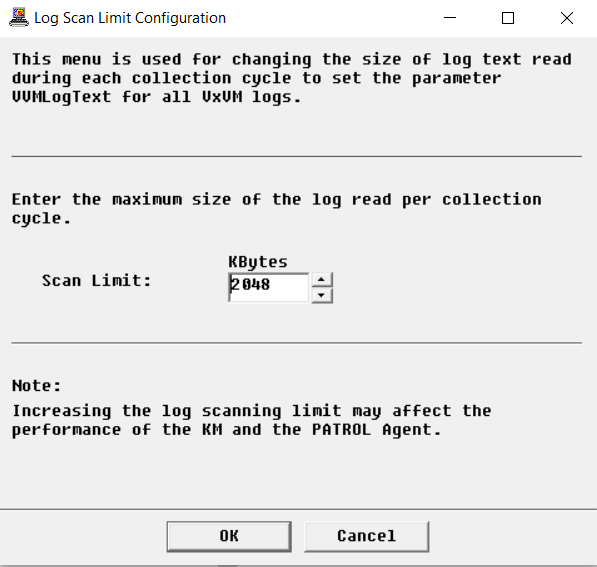
The Veritas Volume Manager KM scans log files by reading the new log entries since the last data collection cycle. By default, 2 MBytes of data is scanned for each log file during each data collection cycle. This log scan limit can however be modified to better suit your requirements.
To customize the log scan limit:
-
In the Console, right-click the Log(s) instance > KM Commands > Configuration > Log(s) Scan Limit…
-
Indicate the amount of data that will be read by the KM during each data collection cycle.
-
Click OK.

Filtering Elements to Monitor
By default, the solution monitors all the discovered elements, which may represent an important workload to the agents and servers. Because the monitoring of some elements may be irrelevant for various reasons, you can apply filters to indicate which elements will be monitored or not.
To filter elements to monitor:
-
In the Console, right-click one of the following instances depending on the elements that you wish to monitor:
- Daemons > KM Commands > Configuration > Daemons… to filter daemons to be monitored
- Logs > KM Commands Configuration > Logs… to filter logs to be monitored
- Disk Groups > KM Commands Configuration > Disk Groups… to filter disk groups to be monitored
- Disk Devices > KM Commands > Configuration > Disk Devices… to filter disk devices to be monitored
- Disk Devices > KM Command > Configuration > Disk Paths… to filter disk paths to be monitored
- Replication > KM Commands > Configuration > Replication Links… to filter replication links to be monitored
- Replication > KM Commands > Configuration > Replicated Volume Groups… to filter replicated volumes groups to be monitored
- Volumes > KM Commands > Configuration > Volumes… to filter volumes to be monitored
- Plexes > KM Commands Configuration > Plexes… to filter plexes to be monitored
- Subdisks > KM Commands > Configuration > Subdisks… to filter subdisks to be monitored
Note: These menus are also available from the child instances and will apply to all objects created under the child instances.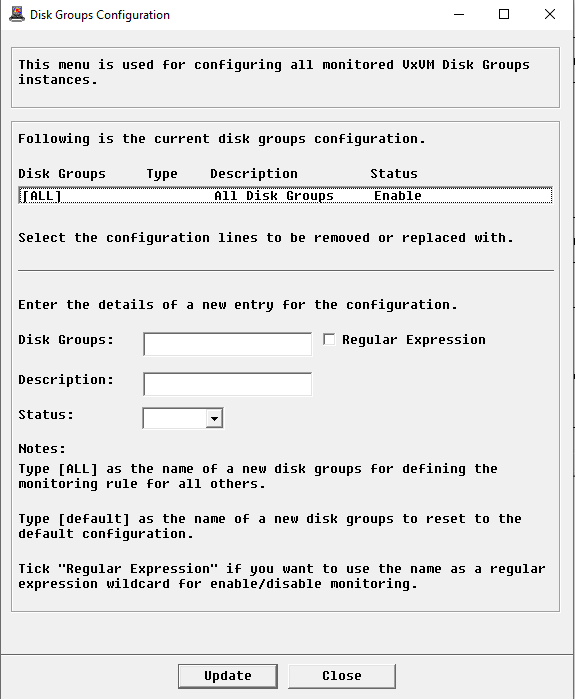
The
[ALL]entry ensures that all the elements found during PATROL discovery are instantiated and monitored. -
To enable elements for monitoring:
- In the current configuration list, select the elements to enable
- Select Enable
- Click Update
A log filter will have to be configured if you enable log files for monitoring.
-
To disable elements for monitoring:
- In the current configuration list, select the elements to disable
- Select Disable
- Click Update
Disabled instances will be instantiated in an OFFLINE state. Commands will not be executed, thus leaving parameters not set.
-
To delete elements for monitoring:
- In the current configuration list, select the elements to delete
- Select Delete
- Click Update
-
To add a new element to monitor:
- Type the name of the element to be monitored (as it appears in the PATROL console) or a regular expression to be monitored
- If needed, enter a description
- From the Status list, select Enable
- Click Update.
To revert to the default monitoring configuration, type [default] as a new entry and click Update.
-
Resume the procedure for all the application classes for which you wish to apply monitoring filters.

Configuring the Multi-Node Monitoring Mode
When Veritas Volume Manager is installed in a cluster environment, i.e. active on one cluster node and passive on others, false alarms and duplicate alerts may occur. To avoid such situation, users need to configure Veritas Volume Manager KM for PATROL in multi-node monitoring mode, if VxVM is installed in a supported cluster.
To configure the multi-node monitoring mode:
-
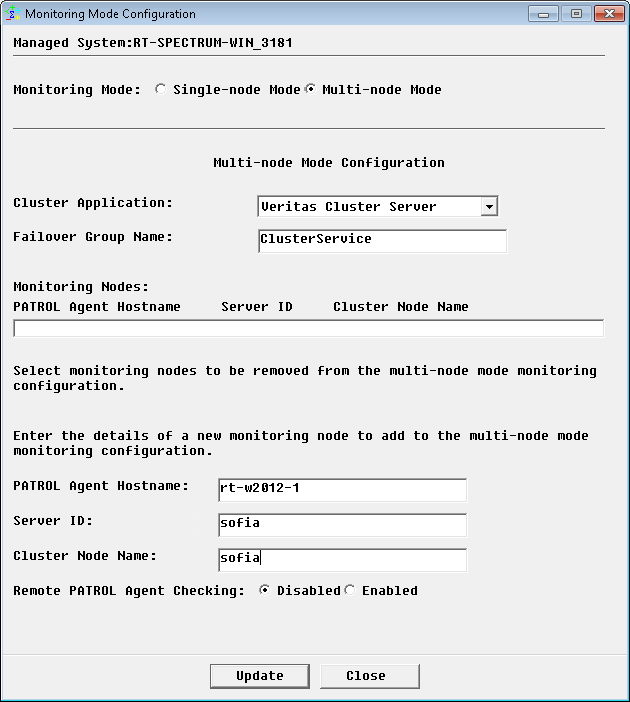
In the Console, right-click the server instance > KM Commands > Configuration > Monitoring Mode…
-
Select Multi-node Mode.
-
From the Cluster Application pull-down list, select an appropriate cluster application.
- In the Failover Group Name field, enter the failover group name, which is online on one cluster node and offline on the others. Leave this field blank if you previously selected Veritas Cluster File System. The Veritas Volume Manager KM will then monitor the entire cluster from the active master system, which is identified by the
vxdctl -c modecommand. This method requiresvxconfigdin enable mode with its clustered state active. -
Provide the details of all managed nodes of the cluster to be configured in the multi-node mode:
- PATROL Agent Hostname: host where the PATROL Agent is installed
- Node ID: the unique ID of the VxVM node as configured in the KM menu Veritas Volume Manager instance > KM Command > Configuration > VxVM Nodes
- Cluster Node Name: the hostname defined in the selected Cluster Application.
-
Click Update.
-
Resume the procedure for all the other VxVM nodes and click Update.
-
Check the Remote PATROL Agent Checking option if there are more than one PATROL Agent involved in the multi-node mode configuration above. If enabled, the KM queries the other PATROL Agents to check the monitoring status of other nodes.
-
Click Close.
-
If the Remote PATROL Agent Checking is Enabled, you will have to provide all the information required to communicate with the PATROL Agents (protocol, port number, credentials, attempts and timeout).
-
Click Close.

The VxVM server will then be monitored through the master or online node in Active Multi-node Mode. The other nodes, which are standing by for a failover, will be in Passive Multi-node Mode, monitoring only the components that are not visible from the active node.
If a managed node is unable to check the monitoring status of the active managed node, it will change to Temporary Single-node Mode allowing full monitoring. It will remain in Temporary Single-node Mode until it finds the active node in full monitoring mode again.
If the Remote PATROL Agent Checking is Disabled, while there are more than one PATROL Agent involved, the managed node on the master or online node will be in Active Multi-node Mode and all others will be in Passive Multi-node Mode, without checking the monitoring status of the active node. In addition, the above procedure to configure Multi-node Mode (server instance > KM Commands > Configuration > Monitoring Mode) needs to be repeated from each PATROL Agent involved.
Configuring the Node Status
Veritas Volume Manager KM allows you to choose which daemons will be used to determine the node status:
-
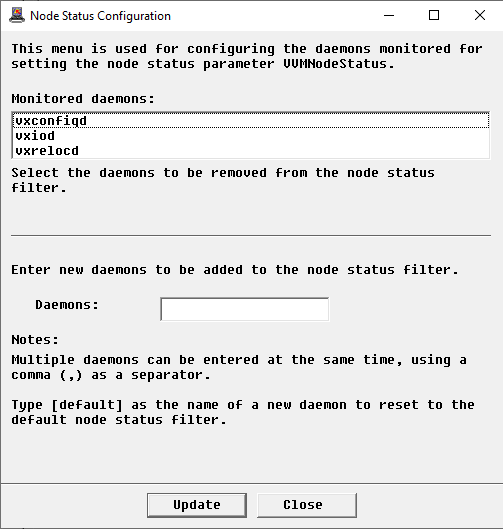
In the Console, right-click the Server instance> KM Commands > Configuration > Node Status…
-
In the Monitored daemons list, select the daemons that will not be used to determine the node status
-
In the Daemon field, list the daemons to be used to determine the node status. The Daemon list must be comma-delimited.
-
To use default settings, type
[default]in the Daemon field -
Click Update.
The VVMNodeStatus parameter will then be set to:
- Suspicious if any command run by the Veritas Volume Manager KM returns a server error message
- Failure if any configured daemon is not running.
